# 계획
프로젝트 파트의 컨셉은 폴더이다.

폴더를 한 장씩 넘겨가며 각 프로젝트 내용을 하나씩 보여줄 생각이다.
글로 설명하기 어려우니 최종 결과를 먼저 보여주자면,
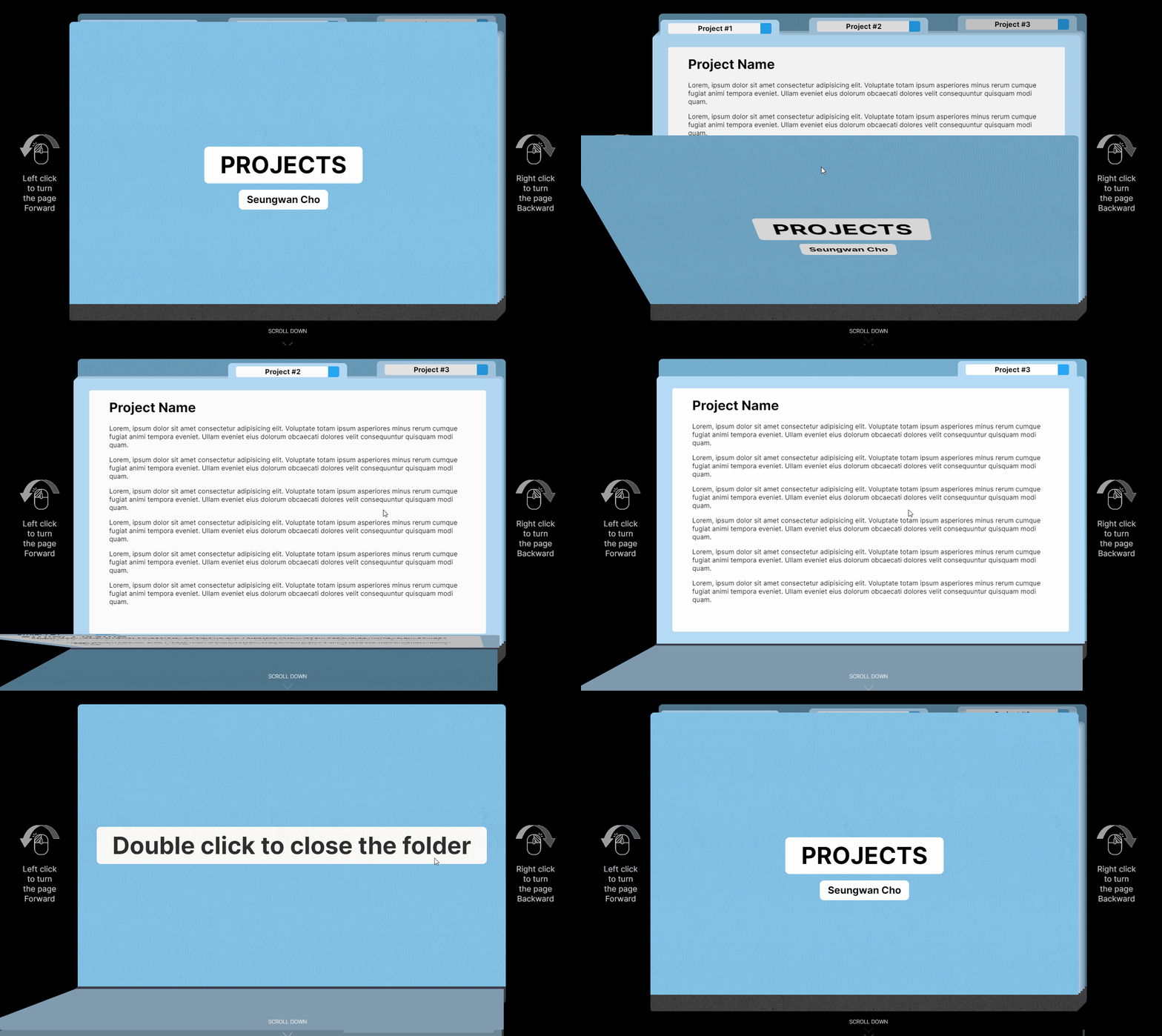
이런 식으로 동작하게 된다.
# 구현
TSX & CSS
먼저, 폴더의 전체적인 구조는 다음과 같다.
// tsx
<div className={styles.folder} id="folder">
  <div className={styles.frontCover}>
    <div>
      <h1>PROJECTS</h1>
      <h2>Seungwan Cho</h2>
    </div>
    <div />
  </div>
  <Page1 />
  <Page2 />
  <Page3 />
  <div className={styles.backCover}>
    <div>
      <p>Double click to close the folder</p>
    </div>
  </div>
</div>
<div className={styles.spineFront}>{images.spine}</div>
<div className={styles.spineSide}>{images.spine}</div>
<div className={styles.spineTop}></div>맨 앞 장인 하늘색 frontCover, 각 프로젝트 내용이 되는 Page, 맨 뒷장인 backCover, 그리고 넘어가는 페이지 아래에 회색 책등을 나타내는 'spine*' class div들로 구성된다.
코드를 처음 보며 의아할 점은, frontCover 및 page의 하위 div가 두 개씩 있다는 점일텐데, 이는 이후에 'JS 로직 - 뒷 장으로 넘기기'에서 함께 설명하도록 하겠다.
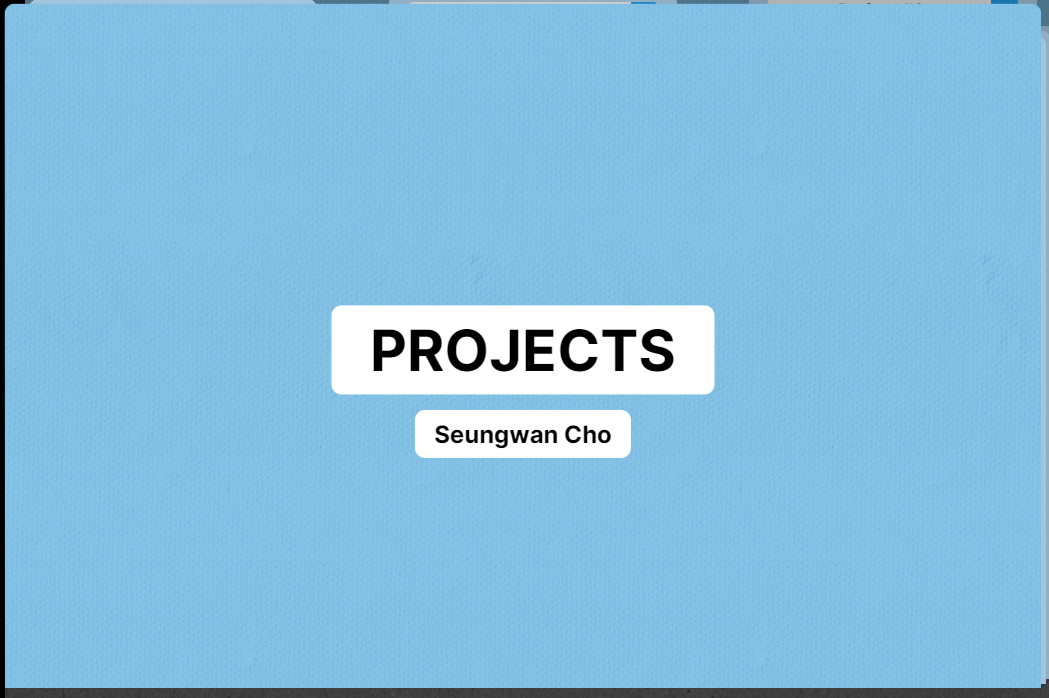
frontCover
// tsx
<div className={styles.frontCover}>
  <div>
    <h1>PROJECTS</h1>
    <h2>Seungwan Cho</h2>
  </div>
  <div />
</div>/* CSS */
.frontCover {
bottom: 40px;
height: calc(100% - 40px);
}
.frontCover > div {
background-color: #68b6e5;
}
.frontCover > div:before {
position: absolute;
top: 0px;
left: 0px;
width: 100%;
height: 100%;
border-radius: 10px 10px 0 0;
background-image: url('/img/project/paperTexture.jpg');
opacity: 0.2;
content: '';
}
.frontCover > div:nth-child(1) > h1 {
position: absolute;
top: 45%;
left: 50%;
background-color: white;
padding: 1vh 2vw;
border-radius: 10px;
transform: translate(-50%, -50%);
font-size: min(6vh, 6vw);
font-weight: bolder;
text-align: center;
}
.frontCover > div:nth-child(1) > h2 {
position: absolute;
top: 60%;
left: 50%;
background-color: white;
padding: 1vh 1vw;
border-radius: 10px;
transform: translate(-50%, -50%);
font-size: min(3vh 3vw);
font-weight: bolder;
text-align: center;
}흠... 설명할게 딱히 없다.
종이 질감을 적용하기 위해 .frontCover > div:before를 이용한 정도...?
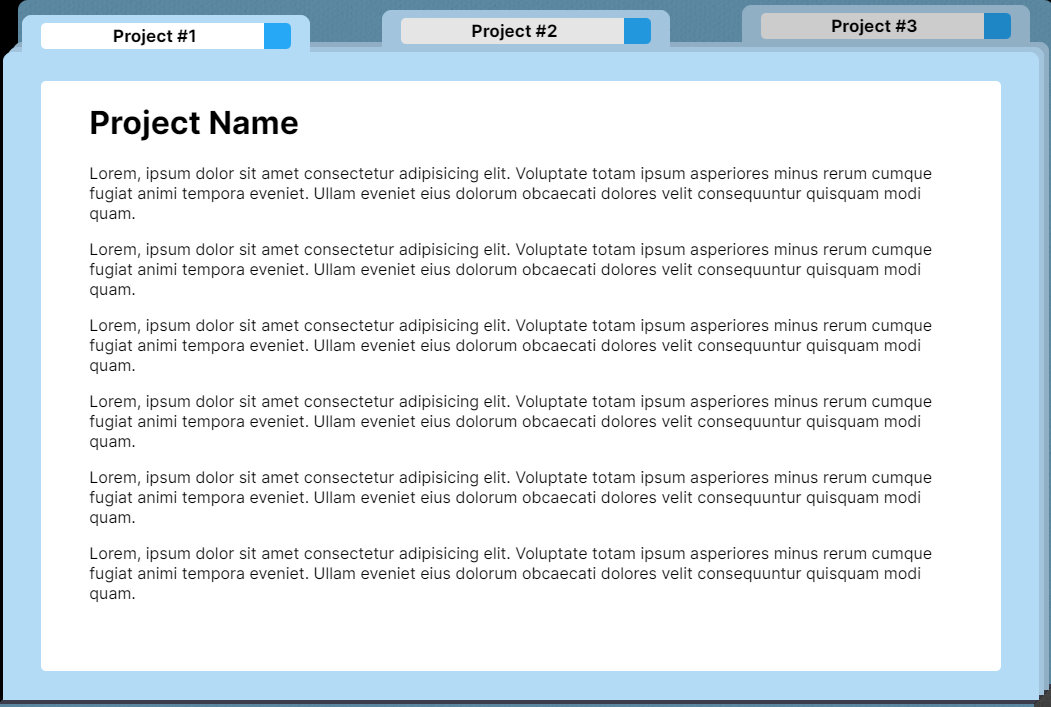
Page
// tsx
export default function Page1() {
  const content = (
    <div className={styles.item}>
      <h1>Project Name</h1>
      <p>
        /* 프로젝트 내용 */
      </p>
    </div>
  );
  return (
    <div className={styles.page}>
      <div>
        <div className={styles.index}>
          <p>Project #1</p>
        </div>
        {content}
      </div>
      <div>
        <div className={styles.index}></div>
      </div>
    </div>
  );
}/* CSS */
.page {
height: calc(100% - 38px - 4vh);
}
.page > div {
background-color: #b4dbf6;
border-radius: 10px 10px 0 0;
}
.index {
position: absolute;
width: 15vw;
height: 4vh;
top: calc(-4vh + 1px);
background-color: #b4dbf6;
border-radius: 10px 10px 0 0;
}
.index > p {
position: absolute;
width: calc(13vw - 2.8vh);
height: 2.6vh;
bottom: 0.4vh;
left: 1vw;
margin: 0;
padding-top: 0.2vh;
background-color: white;
border-radius: 5px 0 0 5px;
font-size: min(1.8vh, 1.5vw);
font-weight: bold;
text-align: center;
}
.index > p:after {
position: absolute;
width: 2.8vh;
height: 2.8vh;
left: 100%;
top: 0px;
border-radius: 0 5px 5px 0;
background-color: #27a8f7;
content: '';
}
.item {
width: calc(100% - 4vw);
height: calc(100% - 3vw);
margin: 1.5vw 2vw;
background-color: white;
border-radius: 5px;
overflow: hidden;
}
.item > * {
width: 90%;
margin-left: 5%;
}위에 삐죽 튀어나와있는 색인(저걸 색인이라 부르는지 확실치는 않지만... 대충 그렇다고 하자)은 index class div로 표현했으며 position: absolute 및 top으로 음수 값을 주어 page 위쪽에 위치하도록 하였다.
.index > p:after는 'Project #1'이란 글자 옆에 파란색 장식을 위해 추가하였다.
BackCover

// tsx
<div className={styles.backCover}>
  <div>
    <p>Double click to close the folder</p>
  </div>
</div>/* CSS */
.backCover {
bottom: 60px;
left: 20px;
height: calc(100% - 40px);
}
.backCover > div {
background-color: #68b6e5;
border-radius: 10px 10px 0 0;
display: flex;
align-items: center;
justify-content: center;
}
.backCover > div:before {
position: absolute;
top: 0px;
left: 0px;
width: 100%;
height: 100%;
border-radius: 10px 10px 0 0;
background-image: url('/img/project/paperTexture.jpg');
opacity: 0.2;
content: '';
}
.backCover > div > p {
background-color: white;
padding: 1vh 2vw;
border-radius: 10px;
font-size: 3vw;
font-weight: bold;
}frontCover랑 똑같다. (=== 설명할게 딱히 없다.)
Spine (책등)

// tsx
<div className={styles.spineFront}>{images.spine}</div>
<div className={styles.spineSide}>{images.spine}</div>
<div className={styles.spineTop}></div>/* CSS */
.spineFront {
position: absolute;
width: calc(100% - 20px);
bottom: 0px;
height: 40px;
border-radius: 0 0 5px 5px;
overflow: hidden;
z-index: -997;
}
.spineSide {
position: absolute;
width: 20px;
height: 37px;
left: calc(100% - 20px);
bottom: 13px;
border-radius: 0 0 5px 0;
overflow: hidden;
transform: skew(0, 135deg);
z-index: -998;
}
.spineTop {
position: absolute;
width: calc(100% - 20px);
height: 20px;
left: 10px;
bottom: 40px;
background-color: #c4cbff;
filter: brightness(30%);
transform: skew(135deg, 0);
z-index: -999;
}이 부분은 완전히 장식용인지라 딱히 설명할게 없다.
JS 로직
(라고 써놓았지만 .ts로 작성되어있다.)
페이지 로드 시 실행될 함수
나는 React를 사용하고 있으므로 결국 useEffect hook에서 호출될 함수를 말한다.
export function organizeFolder() {
  const folder = document.getElementById('folder');
  if (!folder) return;
  const pageNum = folder.children.length;

  for (let i = 0; i < pageNum; i += 1) {
    let page = folder.children.item(i) as HTMLElement;
    page.style.zIndex = `${pageNum - i}`;
    page.style.left = `${(i * 20) / (pageNum - 1)}px`;
    page.style.bottom = `${(i * 20) / (pageNum - 1) + 40}px`;
    if (i !== 0 && i !== pageNum - 1) {
      // index 정렬
      let indexFace = page.children.item(0)?.children.item(0) as HTMLElement;
      let indexBack = page.children.item(1)?.children.item(0) as HTMLElement;
      let left = `calc(1vw + (100% - 2vw - 15vw) * ${(i - 1) / (pageNum - 3)})`;
      if (indexFace && indexBack) {
        indexFace.style.left = left;
        indexBack.style.left = left;
      }
    }
  }
  adjustBrightness(0);
}

function adjustBrightness(start: number) {
  const folder = document.getElementById('folder');
  if (!folder) return;
  const pageNum = folder.children.length;

  let page;
  // pages flipped
  for (let i = 0; i < start; i += 1) {
    page = folder.children.item(i) as HTMLElement;
    page.style.filter = `brightness(${
      80 - (40 / (pageNum - 1)) * (start - i)
    }%)`;
  }
  // pages not flipped
  for (let i = start; i < pageNum; i += 1) {
    page = folder.children.item(i) as HTMLElement;
    page.style.filter = `brightness(${
      100 - (40 / (pageNum - 1)) * (i - start)
    }%)`;
  }
}folder의 각 child, 즉 frontCover, Page, BackCover의 z-index를 조정해주고, 입체감을 주기 위해 left 및 bottom 값을 조금씩 늘려주도록 하였다.

또한 위와 같이 index가 적당한 간격을 두도록 left 값을 설정해주었다.
이 부분을 굳이 CSS가 아닌 JS로 작성한 이유는 앞으로 프로젝트 추가될 때마다 일일히 모든 값을 수정해주고 싶지 않아서이다.
adjustBrightness method는 'start' parameter를 기준으로 뒷 장의 밝기를 낮춰 조금 더 입체감을 주는 method이다.
뒷 장으로 넘기기
export function flipBack(page: number) {
  const folder = document.getElementById('folder');
  if (!folder) return false;
  const pageNum = folder.children.length;
  if (page >= pageNum - 1) return false;

  let curPage = folder.children.item(page) as HTMLElement;
  if (!curPage) return false;

  for (let i = 0; i < curPage.children.length; i += 1) {
    let child = curPage.children.item(i) as HTMLElement;
    child.style.transform = 'rotateX(-100deg)';
  }
  curPage.style.zIndex = `${page + pageNum}`;

  // flipForward 시 backface 순서 역전되는 현상 방지
  window.setTimeout(() => {
    curPage.style.zIndex = `${page - pageNum}`;
  }, 500);

  adjustBrightness(page + 1);

  return true;
}클릭 시 페이지를 뒷장으로 넘겨주는 method이다.
parameter로 현재 page number를 전달받아 다음 page로 넘겨준다.
여러 장 페이지가 넘어갔을 때 기존 z-index를 그대로 가지고 있으면 맨 처음 넘어간 장이 뒷 장보다 위에 표시되게 되므로 z-index 역시 재설정해준다.
여기서 '// flipForward 시 ...' 라고 되어있는 부분은 'JS로직 - 앞 장으로 넘기기'에서 설명하도록 하겠다.
넘겨주는 효과는 transform 값을 rotateX(-100deg)로 바꿔주는 것으로 구현했으며,
/* CSS */
.folder > div {
  position: absolute;
  width: 100%;
  perspective: 3200px;
  perspective-origin: 100% 100%;
  transition: filter 600ms;
}

.folder > div > div {
  position: absolute;
  width: 100%;
  height: 100%;
  border-radius: 10px 10px 0 0;
  transform-origin: center bottom;
  transition: all 600ms;
}folder 내부 div에 perspective와 transform-origin 설정을 통해 적당한 각도로 페이지가 넘어가도록 조절해주었다.
여기서 frontCover 및 page 내부에 div를 2개 넣어준 이유가 나오는데,
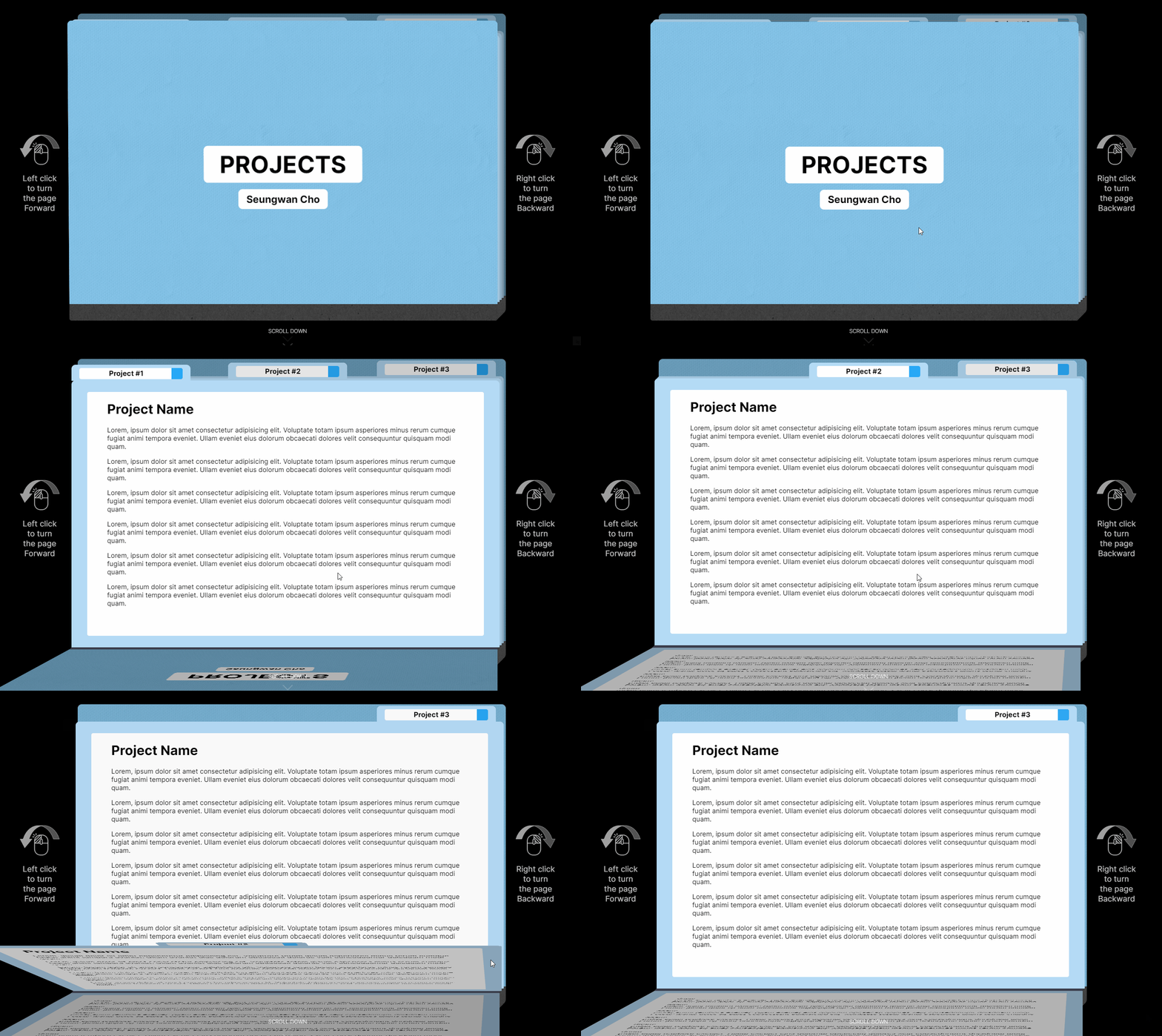
div 하나로 transfrom만 적용하면, 다음과 같이 페이지 뒷 면에 앞 면 내용이 비치는 모습을 볼 수 있다.
// tsx
export default function Page1() {
  // ...
  return (
    <div className={styles.page}>
      <div>
        <div className={styles.index}>
          <p>Project #1</p>
        </div>
        {content}
      </div>
    </div>
  );
}
이 문제를 해결하기 위해선 앞 면이 넘어가면 보이지 않도록 backface-visibility: hidden 속성을 주고, 뒷 면을 따로 그려줘야 한다.
실제 현실의 종이처럼 앞 면, 뒷 면이 따로 존재해야 하는 것이다.
따라서 div를 하나 더 추가하고 앞 면에만 backface-visibility: hidden을 주면,

// tsx
export default function Page1() {
  // ...
  return (
    <div className={styles.page}>
      <div>
        <div className={styles.index}>
          <p>Project #1</p>
        </div>
        {content}
      </div>
      <div>
        <div className={styles.index}></div>
      </div>
    </div>
  );
}/* CSS */
.folder > div > div:nth-child(1) {
z-index: 1;
backface-visibility: hidden;
}문제 없이 작동한다.
앞 장으로 넘기
export function flipForward(page: number) {
  if (page <= 0) return false;
  const folder = document.getElementById('folder');
  if (!folder) return false;

  let curPage = folder.children.item(page - 1) as HTMLElement;
  if (!curPage) return;

  for (let i = 0; i < curPage.children.length; i += 1) {
    let child = curPage.children.item(i) as HTMLElement;
    child.style.transform = 'rotateX(0)';
  }
  curPage.style.zIndex = `${folder.children.length - page + 1}`;

  adjustBrightness(page - 1);

  return true;
}앞으로 넘기는 방법은 뒷 장과 반대로 rotateX(0)을 적용하는 것이다.
이 때 z-index를 넘기기 전 값으로 재설정해주는데, 여기서 'JS로직 - 앞으로 넘기기'에서 언급한 '// flipForward 시 ...'의 이유가 나온다.
// flipBack method
// ...
  curPage.style.zIndex = `${page + pageNum}`;

  // flipForward 시 backface 순서 역전되는 현상 방지
  window.setTimeout(() => {
    curPage.style.zIndex = `${page - pageNum}`;
  }, 500);
// ...넘어간 페이지의 index를 기존과 역순으로 설정해주기 위해 'page + pageNum'으로 설정해주면, 앞 장으로 넘기며 z-index를 'folder.children.length - page + 1'으로 설정할 때 z-index 순서가 꼬여 잠깐 뒤로 사라지는 현상이 발생한다.

따라서 페이지가 적당히 넘어간 후 z-index를 'page - pageNum'으로 설정하여 넘어간 페이지들끼리는 z-index 정렬이 잘 되어있으면서 넘어가지 않은 page보다는 항상 작은 z-index를 가지도록 하였다.
frontCover로 돌아가기
export function initFlip() {
  const folder = document.getElementById('folder');
  if (!folder) return false;

  let time = 0;
  for (let i = folder.children.length - 1; i >= 0; i -= 1) {
    setTimeout(() => {
      flipForward(i);
    }, time);
    time += 100;
  }
  adjustBrightness(0);
}초기화를 위한 method이다.
backCover에서 더블 클릭 시 맨 앞으로 돌아가기 위해 & scroll down 시 다음 컨텐츠가 넘어간 페이지에 의해 가려지지 않도록 폴더를 접기 위해 사용된다.
적당한 시간 간격으로 flipForward method를 맨 뒷장부터 순차적으로 호출하도록 하였다.

(각 페이지 내용은 나중에 채우기로 하자... 힘들다...)
끝!
'Projects > Portfolio' 카테고리의 다른 글
| Next.js 포트폴리오 페이지 제작기 - 7. Typing 효과 적용 (0) | 2023.08.12 |
|---|---|
| Next.js 포트폴리오 페이지 제작기 - 6. Contact & Navigation (0) | 2023.08.09 |
| Next.js 포트폴리오 페이지 제작기 - 4. About part (0) | 2023.08.04 |
| Next.js 포트폴리오 페이지 제작기 - 3. Intro part (0) | 2023.07.28 |
| Next.js 포트폴리오 페이지 제작기 - 2. Welcome to Intro (0) | 2023.07.28 |